Status pages
Status pages give customers or internal teams a shared view of service health. ORB can display selected monitors and heartbeats, uptime information, and incident history, and update the page as resource status changes.
Create a status page
- Open Status pages and choose Create status page.
- Set a unique page URL or alias and enter a recognizable page name.
- Add an optional description to explain which services the page covers.
- Select the monitors and, where available, heartbeats to show.
- Create the page, then open its editor to adjust its presentation.
Customize the page
Use the editor to choose an available built-in theme, set page text and display preferences, and apply branding options offered by your account. ORB supports 3 pre-built themes. Depending on the settings available to your account, you can also adjust typography, page metadata, and sharing options.
Preview the page before sharing it. Confirm that resource names make sense to visitors and that the selected services match the page's stated scope. Status pages can show incident history and incident comments; keep comments concise and suitable for the page's audience.
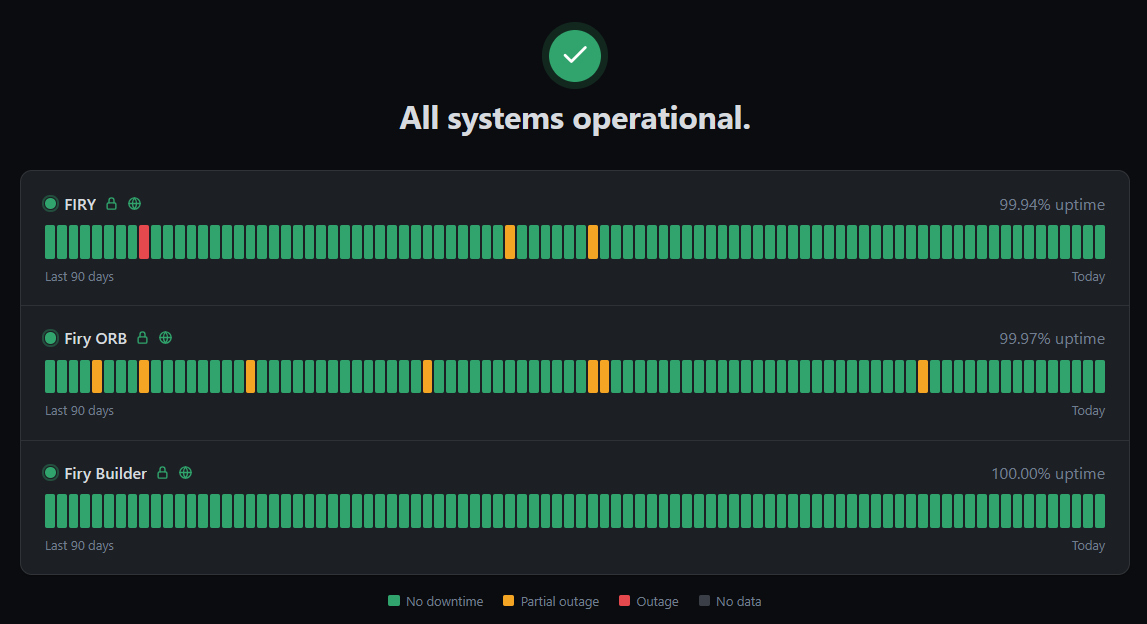
Keep the page useful
- Include only the services relevant to the page's audience.
- Group related services consistently and use clear resource names.
- Confirm that monitors have meaningful expected responses and notification settings.
- Update the description and resource list when the service scope changes.
- During an incident, use the incident details and comments, ot the 'informational message' section, to explain customer impact and progress in plain language.
Troubleshooting
- A service is missing: Edit the status page and check its selected resources; verify the resource exists and is available to your account.
- The displayed state seems wrong: Inspect the resource's latest checks and incident history, then confirm its check configuration.
- A custom domain does not load: Follow the DNS records and verification state shown in Custom domains, and allow time for DNS changes to propagate.
- The page cannot be found or shared: Confirm the alias and publishing/access options in the page settings, then test the URL in a private browser window.
Feature availability and customization options may vary by plan.